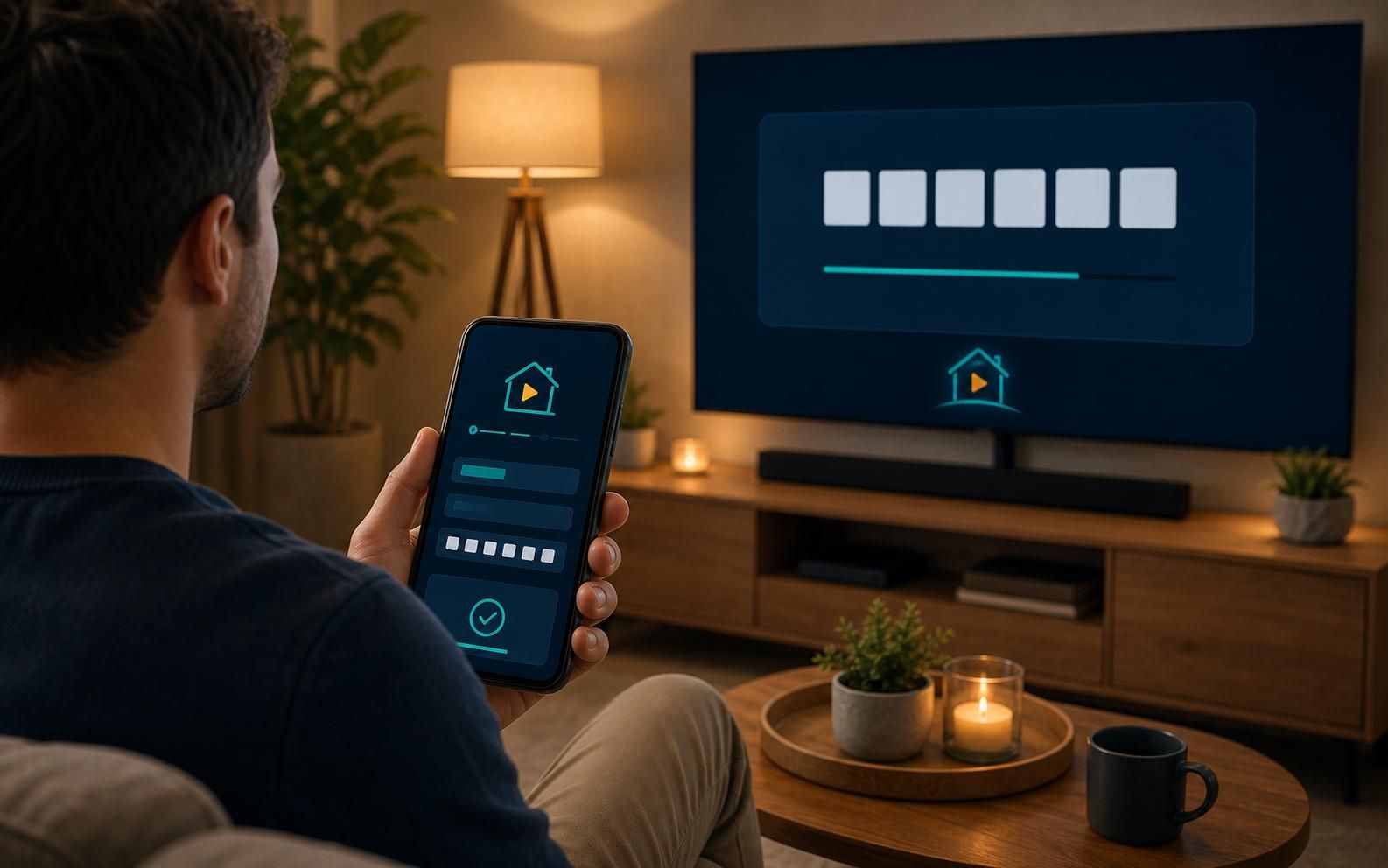
Activation Help
There's a Code
on Your Screen
Activation codes link your streaming app to your account. We explain exactly what to do — step by step, no guessing.
Activation Help
Activation codes link your streaming app to your account. We explain exactly what to do — step by step, no guessing.
What you're seeing
An activation code is a short sequence of letters and numbers (usually 6–8 characters) that appears on your TV screen when you open a streaming app for the first time — or after signing out.
Instead of typing a long email and password using your TV remote (which is painful), the app shows you a code. You go to a specific website on your phone or computer, sign in there, and enter that code. The TV app then recognizes your account and activates automatically.
It is not a PIN number, not a password, and not something wrong. It is the normal, expected sign-in method for most streaming apps on TV devices.
Codes expire quickly — usually within 5 to 15 minutes. Always use the most recent code shown on screen, not one from an old screenshot.
Step by step
Keep the TV screen open and visible
Do not press any buttons on the TV or streaming remote. The code on screen has a timer — leave the TV showing that screen while you complete the next steps on your phone or computer.
Go to the activation link on your phone
The TV screen shows a web address to visit on your phone. Open a browser on your phone or computer and type that exact address shown on the screen. Open a browser on your phone or computer and type that exact address.
Sign into your streaming account
You may be asked to log in on your phone before entering the code. Use the email and password for the streaming service. Only use a different sign-in method if the app specifically shows that option on screen.
Type the code exactly as shown on the TV
Enter the code from the TV screen into the field on the website. Codes are not case-sensitive, but enter every character shown — no spaces. Then click "Continue," "Activate," or "Submit."
Watch the TV — it activates automatically
Within a few seconds, the TV app will update on its own — no button pressing needed. You'll see it move to the home screen of the app, signed in to your account. If nothing happens after 30 seconds, refresh the TV screen by pressing Back and reopening the app.
Quick reference
The TV screen always tells you exactly where to go. Here's how to read it and what to do.
Read the web address on the TV screen
Every activation screen shows a web address — for example, something like yourservice.com/activate or yourservice.com/tv. This address is always shown clearly on screen. Type that exact address into the browser on your phone or computer.
Sign into your account on that page
The website will ask you to sign in with your streaming account email and password. Use the login for that specific service. Once signed in, you'll see a field to enter the code.
Enter the code exactly as shown
Type the code from the TV screen into the field on your phone. Codes are not case-sensitive but include every character — no spaces. Press "Activate," "Continue," or "Submit."
Watch the TV — it updates on its own
Within a few seconds the TV app will activate automatically. If nothing changes after 30 seconds, press Back on the remote and reopen the app — it should now show your account home screen.
Code expired? Get a fresh one
Activation codes expire in 5–15 minutes. If you see "invalid" or "expired," press Back on the remote, reopen the streaming app, and a new code will appear. Enter that new code right away.
Common problems
"Code is invalid" or "Code expired"
The code expired — they only last 5–15 minutes. Go back to the TV, press Back or Home on the remote, reopen the streaming app, and a fresh code will appear. Enter that new code immediately.
Code accepted but TV screen didn't change
Wait 30 seconds — sometimes there's a delay. If nothing changes, press the Back button on the streaming remote and reopen the app. It should now show your account's home screen.
Keeps asking me to sign in after activation
This usually means the app has a stale session. Close the app fully (hold the Home button to exit), reopen it, and sign in again. If it loops more than twice, go to the device settings, find the app, and choose "Clear Data" before signing in fresh.
Wrong account signed in
The app may have remembered a previous account. Look for a profile icon or "Switch Account" option in the app's settings menu. Log out, then log back in with the correct email and password.
Safety
✓ Safe to share with us
✕ Never share with anyone
Tell us the code and the app — we'll walk through it with you live until it's done.
Call (800) 858-1087