App Setup
Streaming App
Setup Guide
Install and sign into any streaming app — on any TV or streaming device. We walk you through every screen.
App Setup
Install and sign into any streaming app — on any TV or streaming device. We walk you through every screen.
Installing an app
The steps are almost identical on every device — open the app store, search, and install. Here's exactly how to do it.
Open the device's app store
On a streaming stick or box: Press the Home button and look for a store icon labeled "Channels," "Apps," or "App Store."
On a smart TV: Look for an apps icon on the home screen or in the main menu — it's usually labeled "Apps" or "Smart Hub."
On a gaming console: Open the store from the home screen and search under "Apps" or "Entertainment."
Search for the app by name
Use the search bar in the app store. Type the full name of the streaming service you want to install. Use the on-screen keyboard and the remote's direction pad to type each letter, pressing OK or Select after each one.
Select and install the app
Highlight the correct app in the results — look for the official logo. Press OK or Select, then choose "Add Channel," "Install," or "Get." The app will download automatically. This usually takes 1–3 minutes.
Open the app and sign in
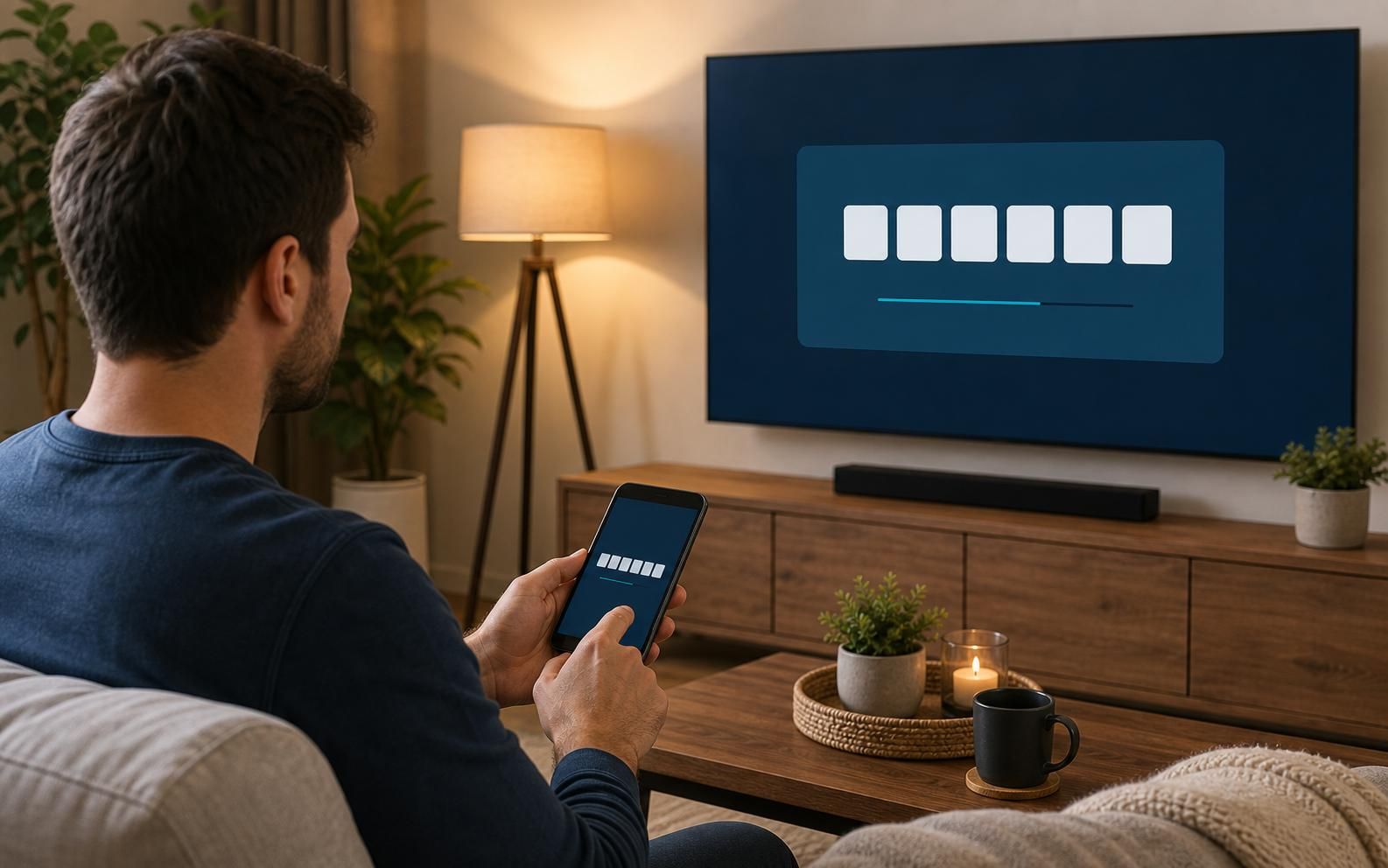
Once installed, launch the app. It will ask you to sign in. You can either type your email and password with the remote, or use an activation code — a short code shown on the TV screen that you enter on your phone or computer to link your account. See our Activation Help page for details on codes.
App by app
Each app works slightly differently at sign-in. Here's what to expect.
Email & password sign-in
Most streaming apps let you sign in by typing your email and password directly on the TV using the remote. Open the app, select "Sign In," and use the on-screen keyboard to enter your credentials. If you share a plan with someone, use the account holder's login — not your own email if you were added as a member.
Activation code sign-in
Many apps skip the keyboard entirely and show a short code on the TV screen instead. Go to the web address shown on the TV using your phone or computer, sign into your account there, and enter the code. The TV app activates automatically — no typing on the remote needed. See our Activation Help page for full details.
Cable or provider sign-in
Some streaming services let you sign in through your cable or internet provider. When the app asks how you subscribe, choose "Sign In with a Provider" or "Through TV Provider" and select your provider from the list. Use your cable or internet account login — not a separate streaming password.
App asks for a verification code
After entering your email and password, the streaming service may send a 6-digit code to your email or phone as an extra security step. Check that inbox, enter the code when prompted, and the app will finish signing you in. Codes typically expire within 10 minutes.
Troubleshooting
Call us and we'll install it, sign you in, and make sure it works — before we hang up.
Call (800) 858-1087