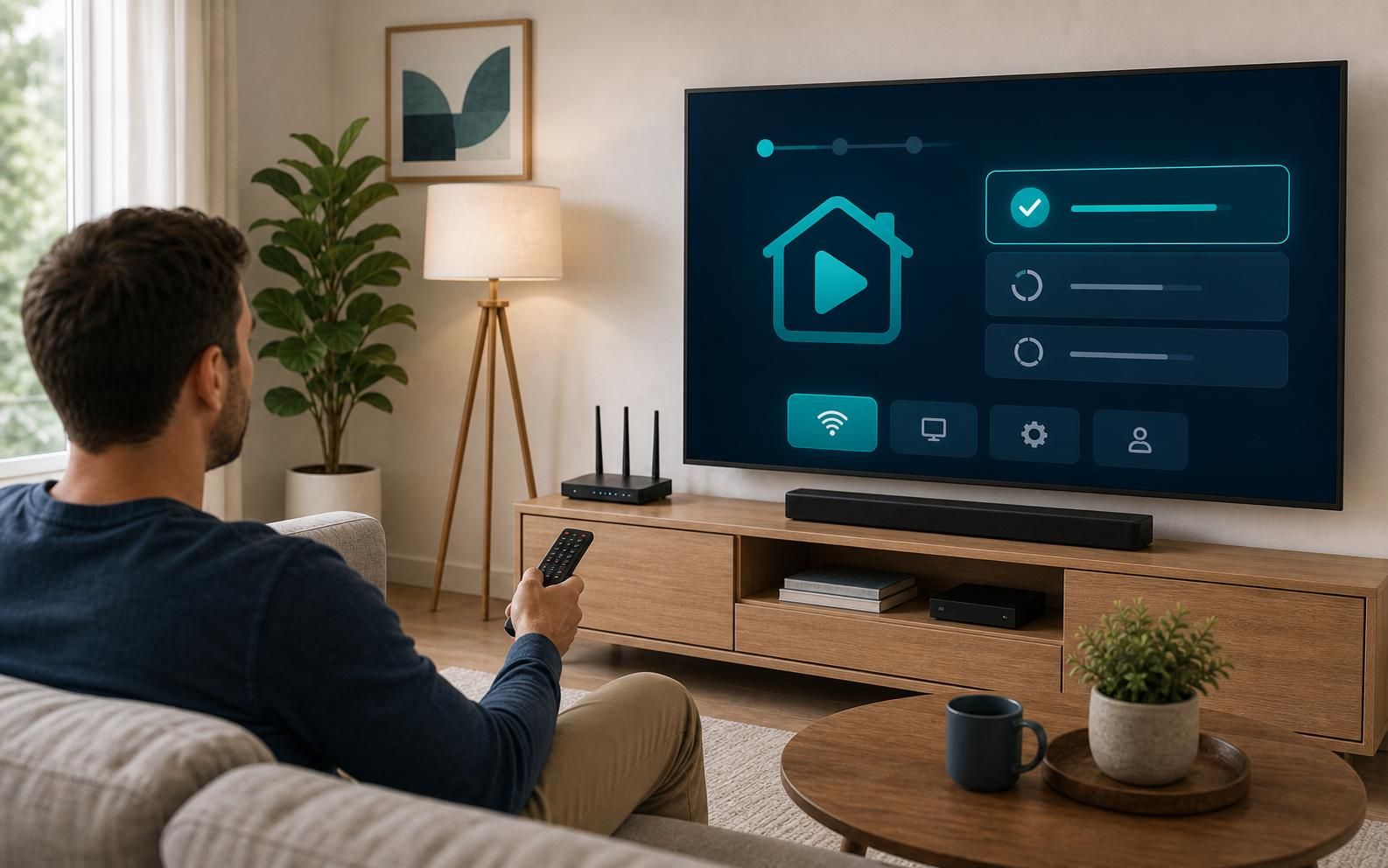
Connect to TV
Streaming Device
Setup Guide
Any streaming stick, box, or dongle — we connect it to any TV. Follow the steps below or call us and we'll do it with you live.
Connect to TV
Any streaming stick, box, or dongle — we connect it to any TV. Follow the steps below or call us and we'll do it with you live.
Before you start
Gather these before you begin. Most setups take under 10 minutes once everything is ready.
Step by step
Follow these steps in order. Each one takes under a minute.
Plug the device into an HDMI port
Look on the back or side of your TV for a port labeled "HDMI." Plug the streaming stick or box firmly into that port. Most TVs have 2–4 HDMI ports. Note which number you used — HDMI 1, 2, or 3.
Give the device power
Plug the included power adapter into a wall outlet (not the TV's USB port — wall outlets give more consistent power). If your device came with a USB cable, use the wall adapter it came with, not the TV's USB slot.
Switch the TV to the right input
Turn on the TV. Press the "Input" or "Source" button on the TV remote (not the streaming device remote). A list will appear. Select the HDMI port you used in Step 1 — for example, "HDMI 1." The streaming device's setup screen should appear.
Pair the remote (if needed)
Most streaming device remotes pair automatically. If nothing happens, hold the remote a few inches from the device and press and hold the Home button for 5 seconds.
Connect to Wi-Fi
The setup screen will ask for your Wi-Fi network. Scroll through the list, select your network name, and enter the password using the on-screen keyboard. Use the direction pad on the remote to highlight each letter and press OK or Select to type it.
Sign in or create an account
Each streaming device requires an account to activate it. An activation code may appear on screen — go to the link shown on a phone or computer and enter the code to link your account. See our Activation Help page for details.
Install your streaming apps
Once the device is connected, open the app store on your device and search for any streaming service by name. Select Install or Add. See our App Setup guide for signing into each one.
Common problems
TV shows "No Signal" on the HDMI input
Unplug the streaming device from the HDMI port, wait 10 seconds, and plug it back in firmly. Then press Input/Source on the TV remote again. If still no signal, try a different HDMI port and update the TV input selection to match.
The streaming remote won't respond
Remove and re-insert the batteries. Hold the remote within 12 inches of the device and hold the Home button for 10 seconds to re-pair. Make sure the device is powered (a small LED light should be on or blinking).
Can't find my Wi-Fi network in the list
Your router may be broadcasting on a 5GHz band only. Older streaming devices work better on 2.4GHz. Check your router settings or call your internet provider to confirm both bands are active. Also make sure you're within a reasonable distance of the router.
Setup screen keeps spinning or freezing
This usually means a weak power supply. Unplug the device from power for 30 seconds, replug, and try again. Do not use the TV's USB port for power — use a wall outlet instead.
Describe what's on your screen and we'll walk you through the rest — live, step by step.
Call (800) 858-1087